Pod Terminal
KubeVision provides a full in-browser terminal to any running Pod via xterm.js. No kubectl installation is required on the client.
Opening a Terminal
- Navigate to Workloads → Pods and click a Pod
- Select the Terminal tab
- If the Pod has multiple containers, select one from the Container dropdown
- The terminal connects and you are dropped into a shell
tip
The shell is determined by the container image. KubeVision tries bash first, then falls back to sh.
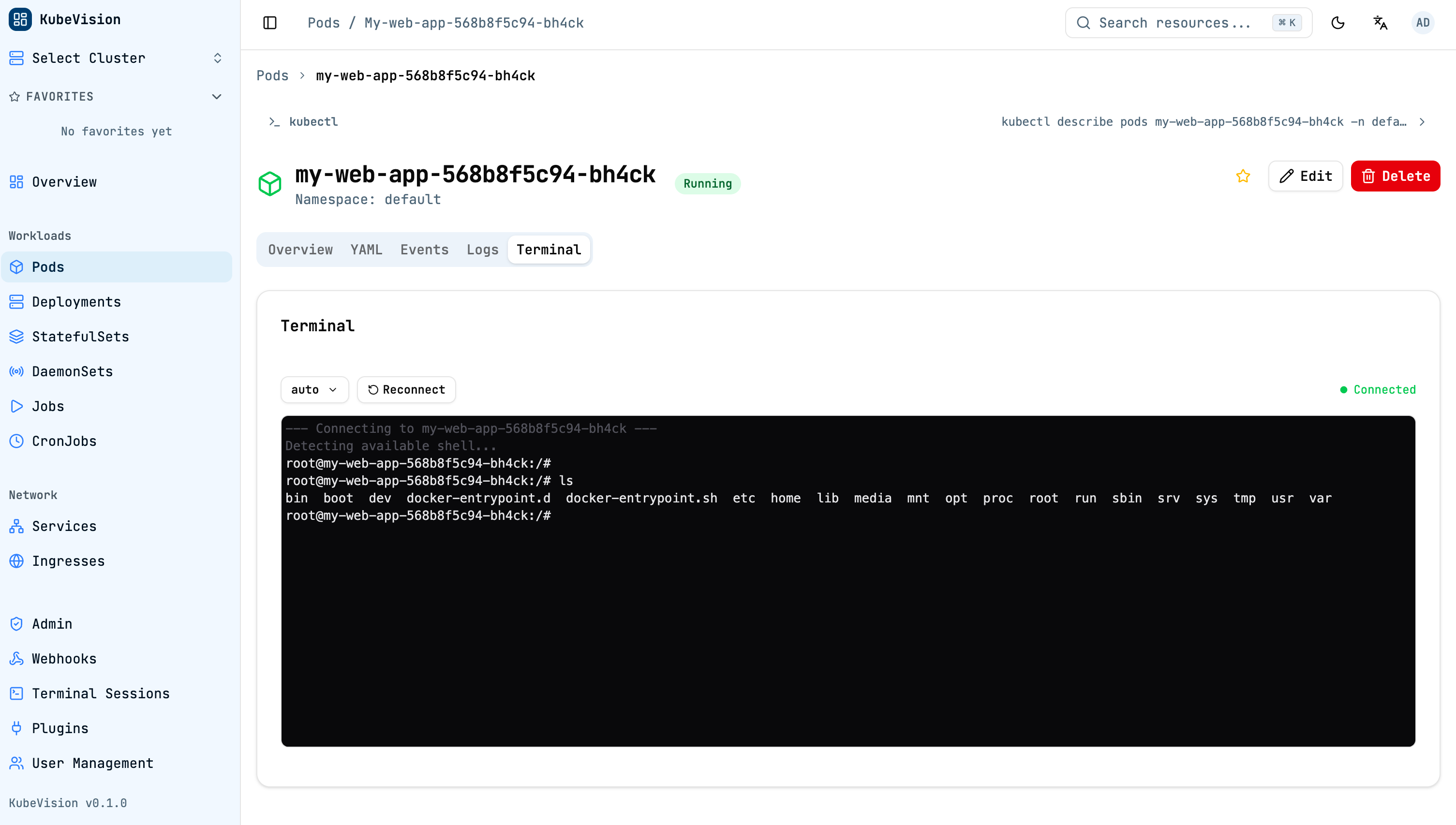
A connected terminal on a Pod detail page, with container selection and reconnect controls.
Features
| Feature | Details |
|---|---|
| Full TTY | Proper pseudo-terminal with ANSI colors, cursor movement, and control sequences |
| Resize | Terminal resizes automatically when the browser window changes |
| Clipboard | Paste with Ctrl+Shift+V (Linux/Windows) or Cmd+V (macOS) |
| Scrollback | 10,000 line scrollback buffer |
Keyboard Shortcuts
| Shortcut | Action |
|---|---|
Ctrl+C | Send SIGINT (interrupt current process) |
Ctrl+D | Send EOF (close shell) |
Ctrl+L | Clear screen |
Ctrl+Shift+C | Copy selection to clipboard |
Session Recording
All terminal sessions are recorded automatically in asciinema v2 format and stored server-side.
Replaying a Session (Admin Only)
- Go to Admin → Terminal Sessions
- Find the session by user, Pod, or time range
- Click Replay — the session plays back in the browser at original speed
- Use the scrubber to jump to any point in the session
// asciinema v2 header example
{"version": 2, "width": 220, "height": 50, "timestamp": 1741132800, "title": "default/my-pod/app"}
info
Session recordings are stored in the KubeVision database. Retention period is configurable via TERMINAL_RECORDING_RETENTION_DAYS (default: 30 days).
Security
- Each session is authenticated via the user's JWT
- RBAC
execpermission is required (see RBAC) - All keystrokes are transmitted over a TLS WebSocket (
wss://) - Session recordings are accessible only to admin-role users